Cluster Management and Tools
Topics
Task Management
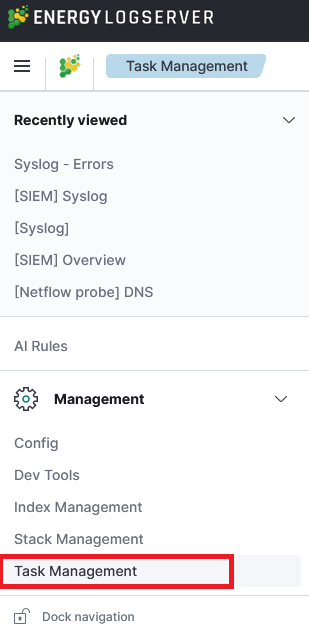
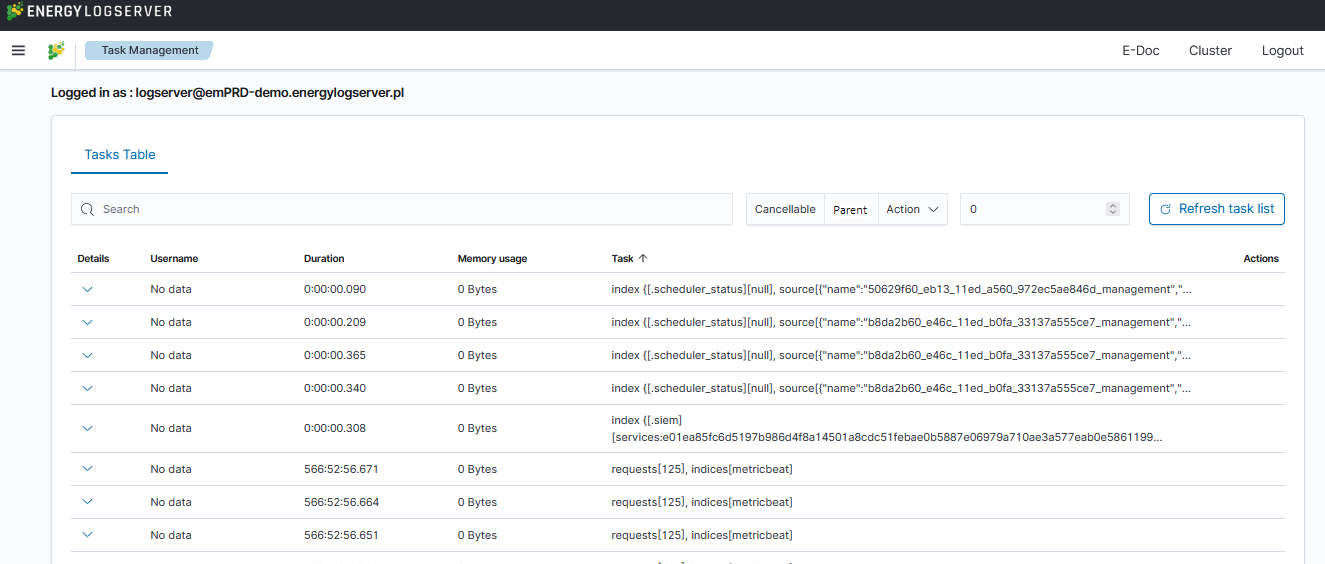
Energy Logserver provides the ability to manage tasks. Table with running tasks is located in Tasks section.
Long Running Query
If query is cancellable trash icon is available in Actions column. (Note: Not every query can be canceled)

Searchbar and filtering
It is possible to search for running task using searchbar. There are provided four types of filtering:
Cancellable- It filters only cancellable tasks.Parent- This option filters only parent tasks.Action- It filters by action ( Sample action:indices:data/write/bulk).Running time in seconds- When checked, only shows tasks that take longer than a specified number of seconds.
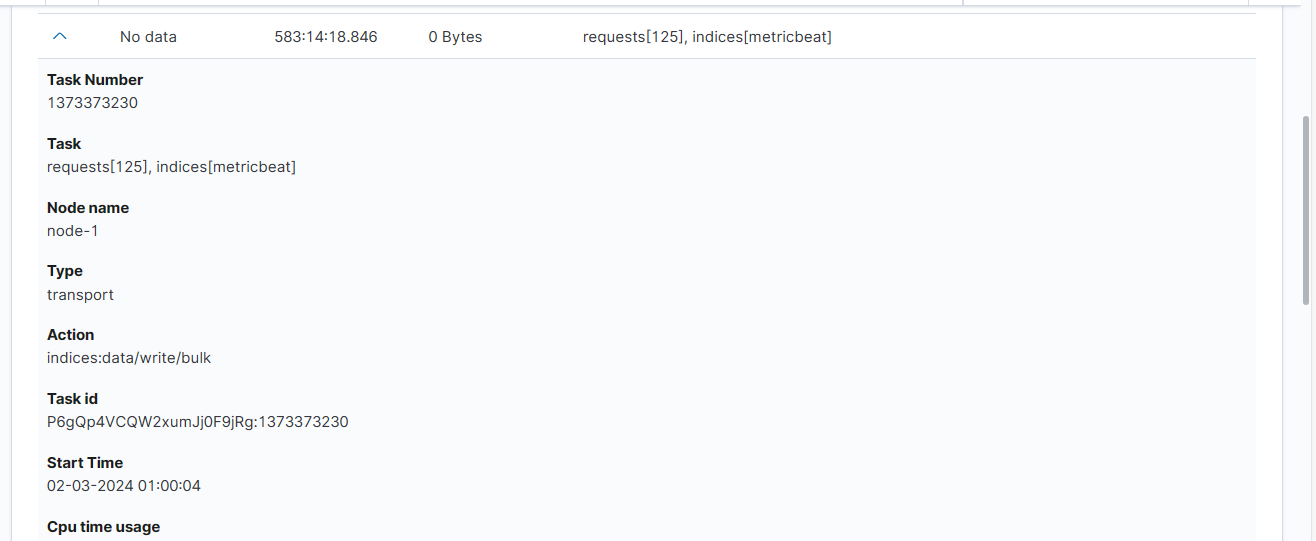
Task Details
Expanding the details column provides more information about a given task. (Note: Depending on the type of task, different information may be provided.)
Cerebro - Cluster Health
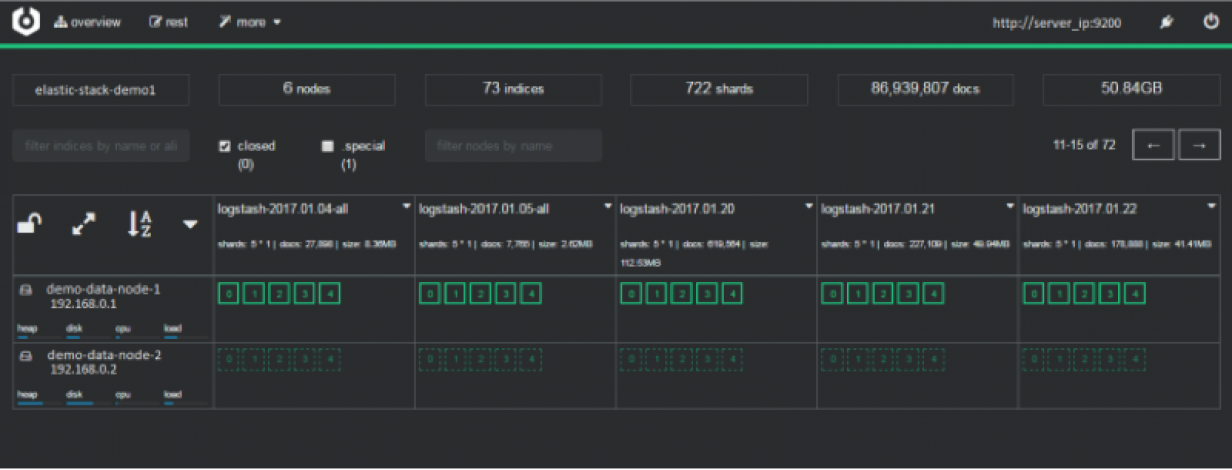
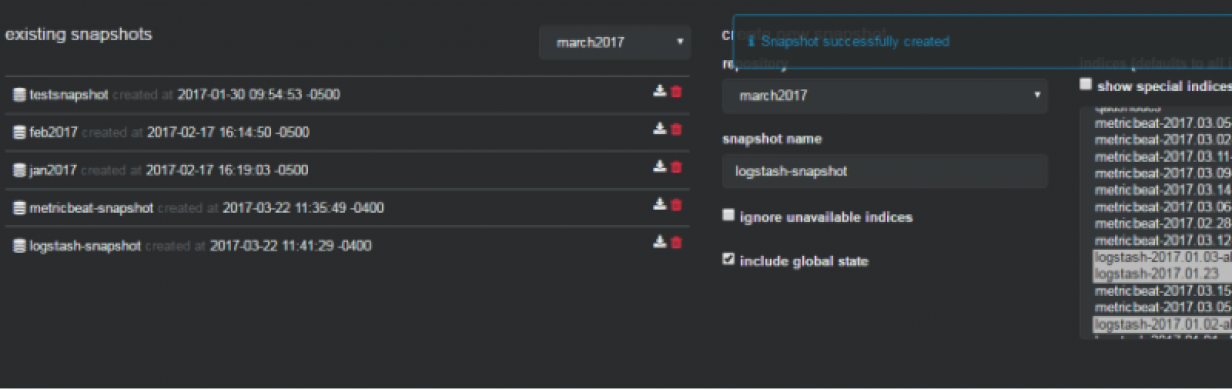
Cerebro is the cluster administration tool that allows you to perform the following tasks:
monitoring and management of indexing nodes, indexes and shards:
monitoring and management of index snapshoots :
informing about problems with indexes and shards:
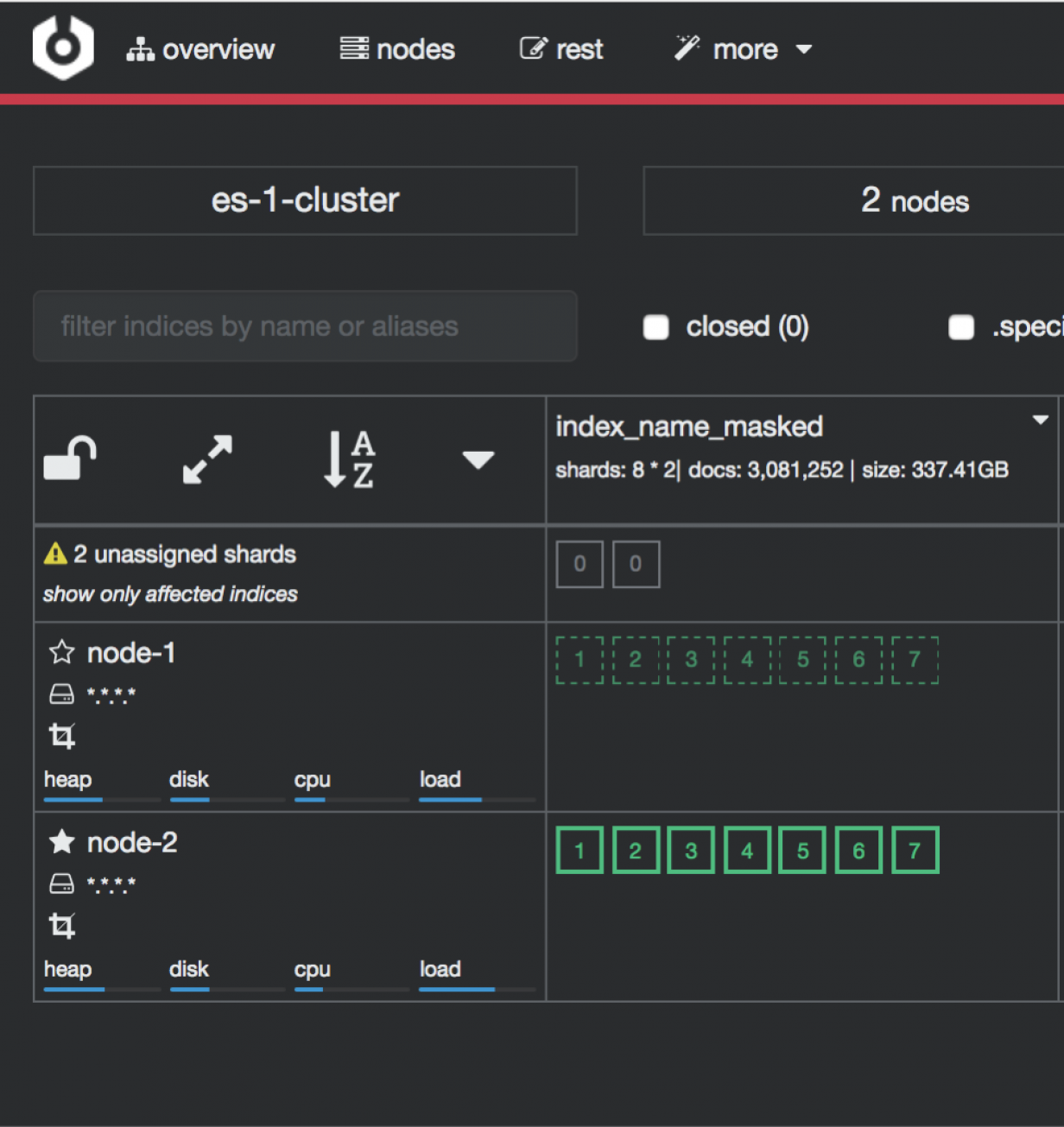
Access to the Cluster module is possible through the button in the upper right corner of the main window.

To configure cerebro see to Configuration section.
Data dump
Data dump guide is available under this link
Data Node index management tool
Tool guide is available under this link
Cross-cluster Search
Cross-cluster search lets you run a single search request against one or more remote clusters. For example, you can use a cross-cluster search to filter and analyze log data stored on clusters in different data centers.
Configuration
Use
_clusterAPI to add least one remote cluster:curl -u user:password -X PUT "localhost:9200/_cluster/settings?pretty" -H 'Content-Type: application/json' -d' { "persistent": { "cluster": { "remote": { "cluster_one": { "seeds": [ "192.168.0.1:9300" ] }, "cluster_two": { "seeds": [ "192.168.0.2:9300" ] } } } } }'
To search data in index
twitterlocated on thecluster_oneuse following command:curl -u user:password -X GET "localhost:9200/cluster_one:twitter/_search?pretty" -H 'Content-Type: application/json' -d' { "query": { "match": { "user": "kimchy" } } }'
To search data in index
twitterlocated on multiple clusters, use following command:curl -u user:password -X GET "localhost:9200/twitter,cluster_one:twitter,cluster_two:twitter/_search?pretty" -H 'Content-Type: application/json' -d' { "query": { "match": { "user": "kimchy" } } }'
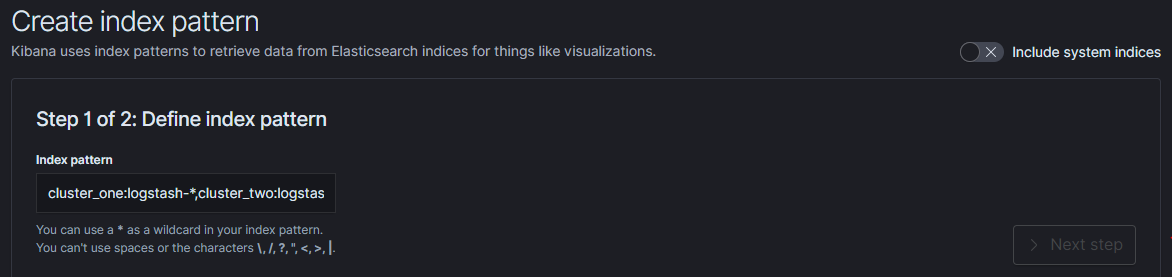
Configure index pattern in GUI to discover data from multiple clusters:
cluster_one:syslog-*,cluster_two:syslog-*
Security
Cross-cluster search uses the Data Node transport layer (default 9300/tcp port) to exchange data. To secure the transmission, encryption must be enabled for the transport layer.
Configuration is in the /etc/logserver/logserver.yml file:
# Transport layer encryption
logserverguard.ssl.transport.enabled: true
logserverguard.ssl.transport.pemcert_filepath: "/etc/logserver/ssl/certificate.crt"
logserverguard.ssl.transport.pemkey_filepath: "/etc/logserver/ssl/certificate.key"
logserverguard.ssl.transport.pemkey_password: ""
logserverguard.ssl.transport.pemtrustedcas_filepath: "/etc/logserver/ssl/rootCA.crt"

logserverguard.ssl.transport.enforce_hostname_verification: false
logserverguard.ssl.transport.resolve_hostname: false
Encryption must be enabled on each cluster.
Sync/Copy
The Sync/Copy module allows you to synchronize or copy data between two Energylogserver clusters. You can copy or synchronize selected indexes or indicate index pattern.
Configuration
Before starting Sync/Copy, complete the source and target cluster data in the Profile and Create profiletab:
Protocol - http or https;
Host - IP address ingest node;
Port - communication port (default 9200);
Username - username that has permission to get data and save data to the cluster;
Password - password of the above user
Cluster name
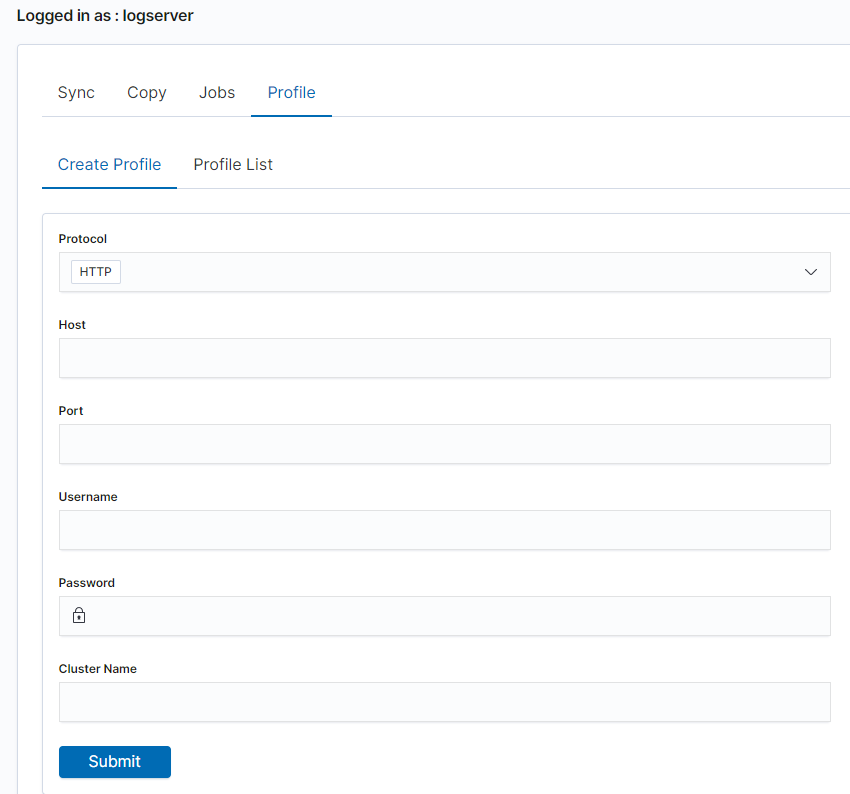
You can view or delete the profile in the Profile List tab.
Synchronize data
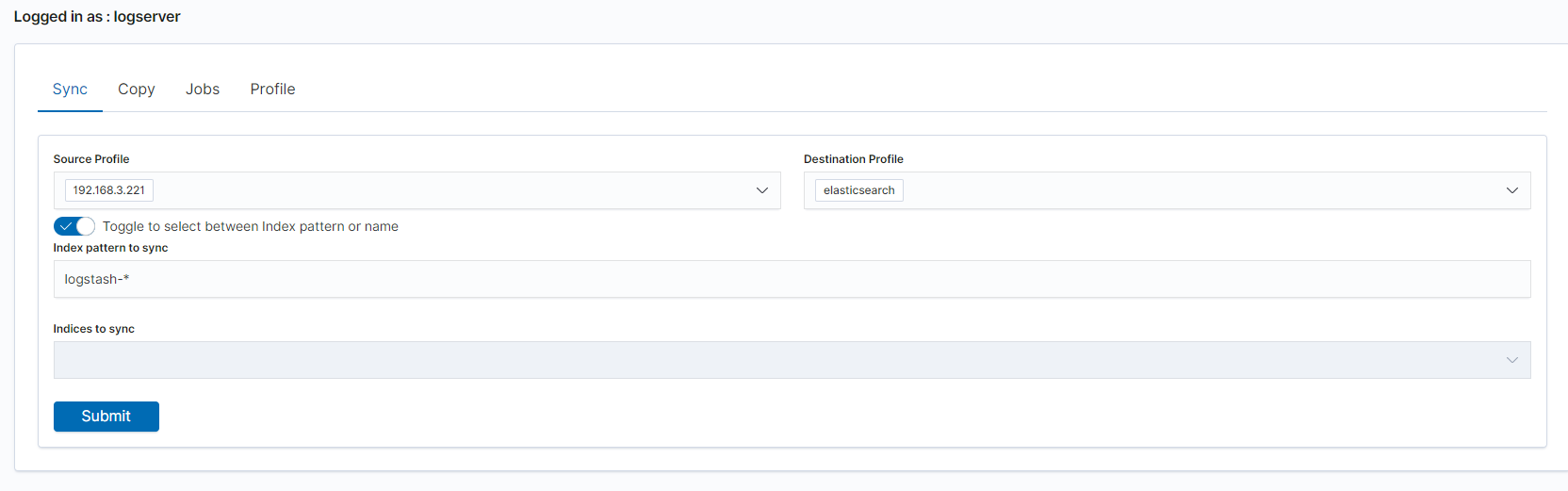
To perform data synchronization, follow the instructions:
go to the
Synctab;select
Source Profileselect
Destination Profileenter the index pattern name in
Index pattern to syncor use switch
Toggle to select between Index pattern or nameand enter indices name.to create synchronization task, press
Submitbutton
Copy data
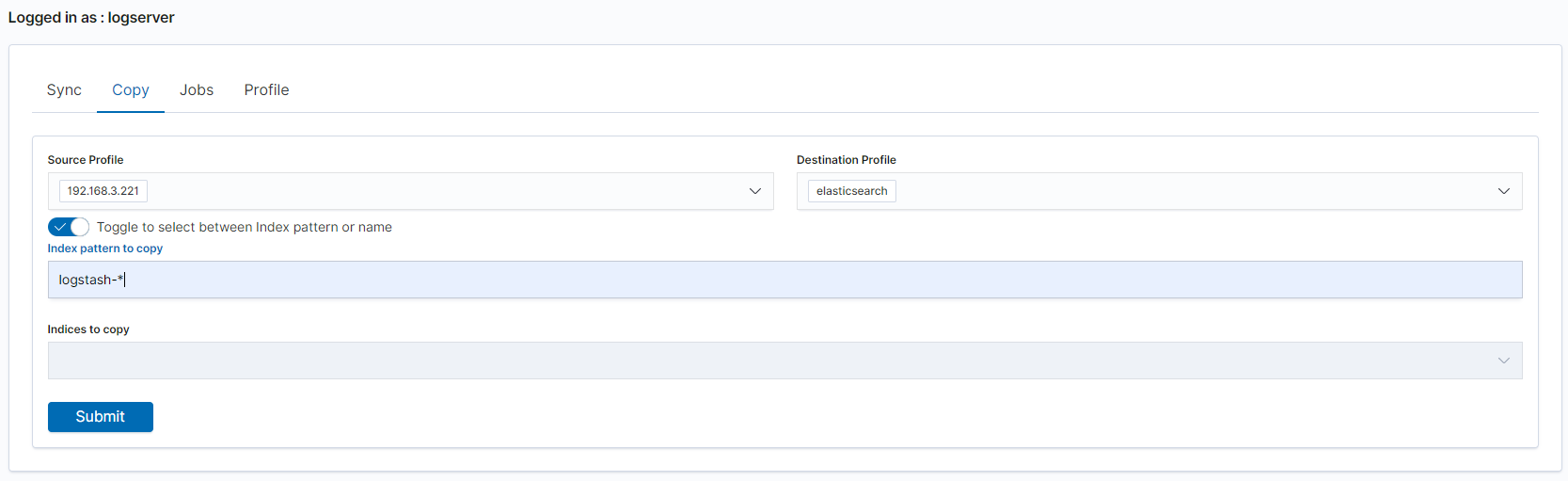
To perform data copy, follow the instructions:
go to the
Copytab;select
Source Profileselect
Destination Profileenter the index pattern name in
Index pattern to syncor use switch
Toggle to select between Index pattern or nameand enter indices name.to start copying data press the
Submitbutton
Running Sync/Copy
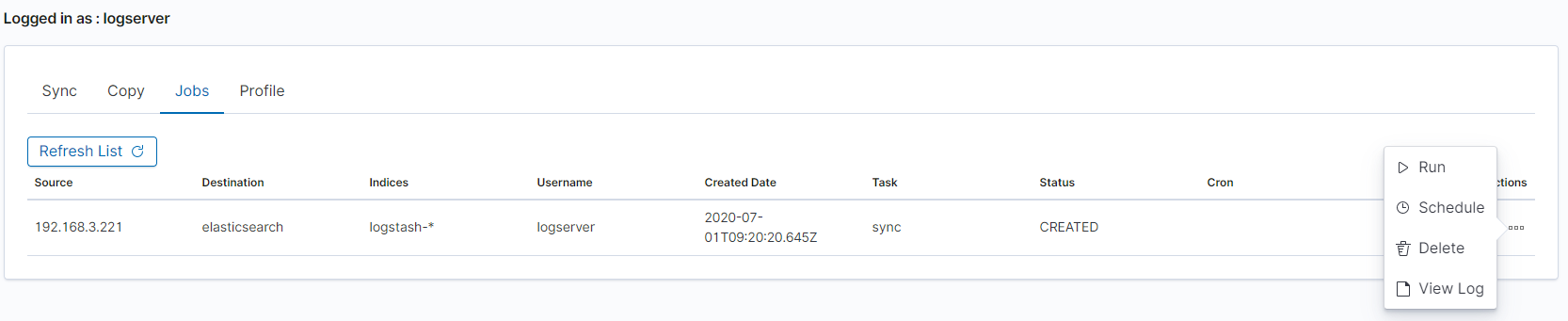
Prepared Copy/Sync tasks can be run on demand or according to a set schedule.
To do this, go to the Jobs tab. With each task you will find the Action button that allows:
running the task;
scheduling task in Cron format;
deleting task;
download task logs.