Advanced Analytics
Clustering
Clustering groups similar data into clusters. Below is a guide on configuring clustering in the Empowered AI module.
Step 1: Configuring the Clustering Rule
Number of clusters
In the Clusters section, specify the number of clusters to be created. This number depends on the nature of your data and the objectives of your analysis.

Complete the configuration of other settings, such as Start Date, Build Time Frame, Scheduler options, and Field to Analyse. These settings are the same as those described in the common configuration guide.
Step 2: Running the Rule
After configuring all settings, click Save to save the rule, then click Run to start the clustering process or Save & Run to start process imidietly.
Summary
Configuring clustering in the Empowered AI module is a straightforward process that involves setting the number of clusters and preparing the appropriate data.
Performance Tab for Clustering
The Performance Tab provides comprehensive visualizations and detailed information on clustering results.
Elbow Method and Optimal Number of Clusters
The elbow method is a commonly used technique in clustering analysis to determine the optimal number of clusters. It involves plotting cluster quality against the number of clusters and identifying the point where the quality improvement slows down, forming an “elbow” shape on the graph. This point indicates the optimal number of clusters.
Cluster Quality Chart
The Cluster Quality Chart visualizes the relationship between the number of clusters and the cluster quality. The x-axis represents the number of clusters, and the y-axis represents the cluster quality score. The goal is to identify the point where adding more clusters does not significantly improve quality, which is the optimal number of clusters.
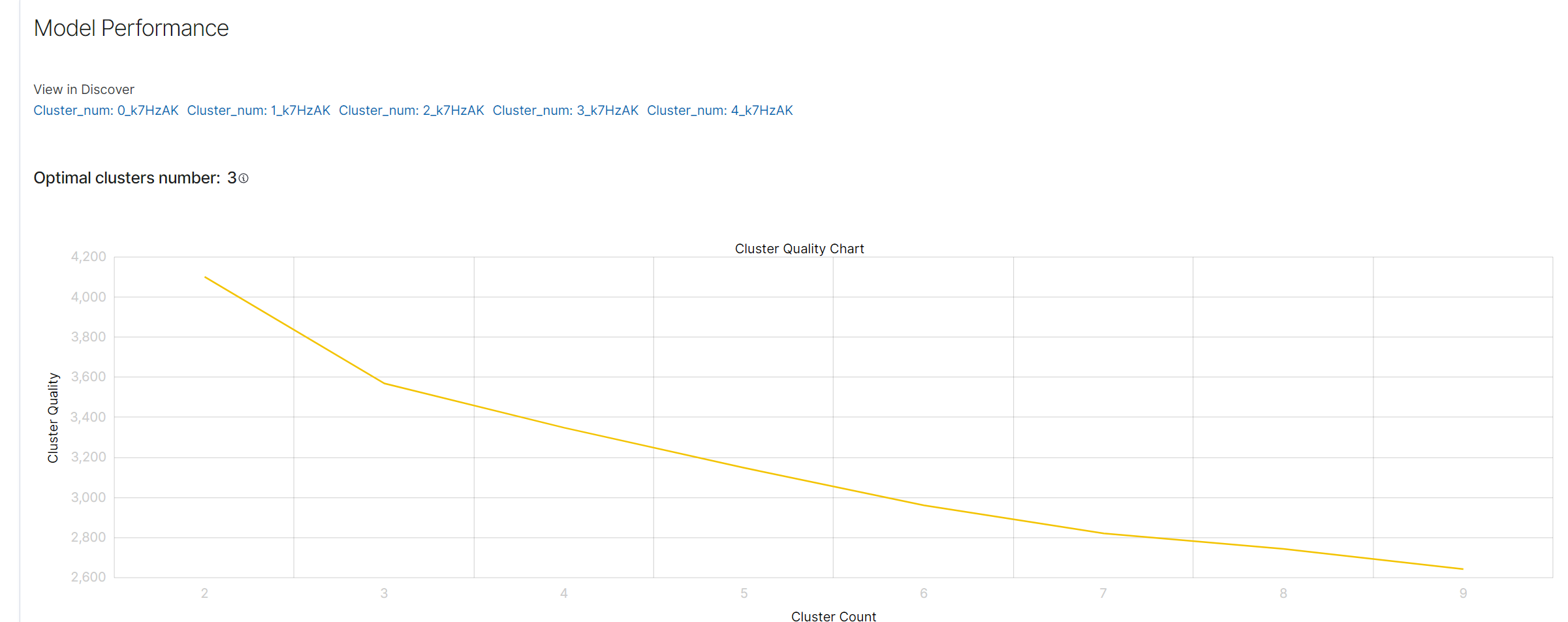
In this example, the optimal number of clusters is 3, as indicated on the chart.
Cluster Distribution Chart
Below the elbow method chart in the Performance tab, there is a cluster distribution chart. This chart shows the distribution of documents among clusters along with their centers. Each dot on the chart represents a document assigned to a specific cluster.
Clicking on a Dot: Clicking on any dot on the chart will display a preview of the document it represents. The preview contains detailed information about the document, such as the message content.
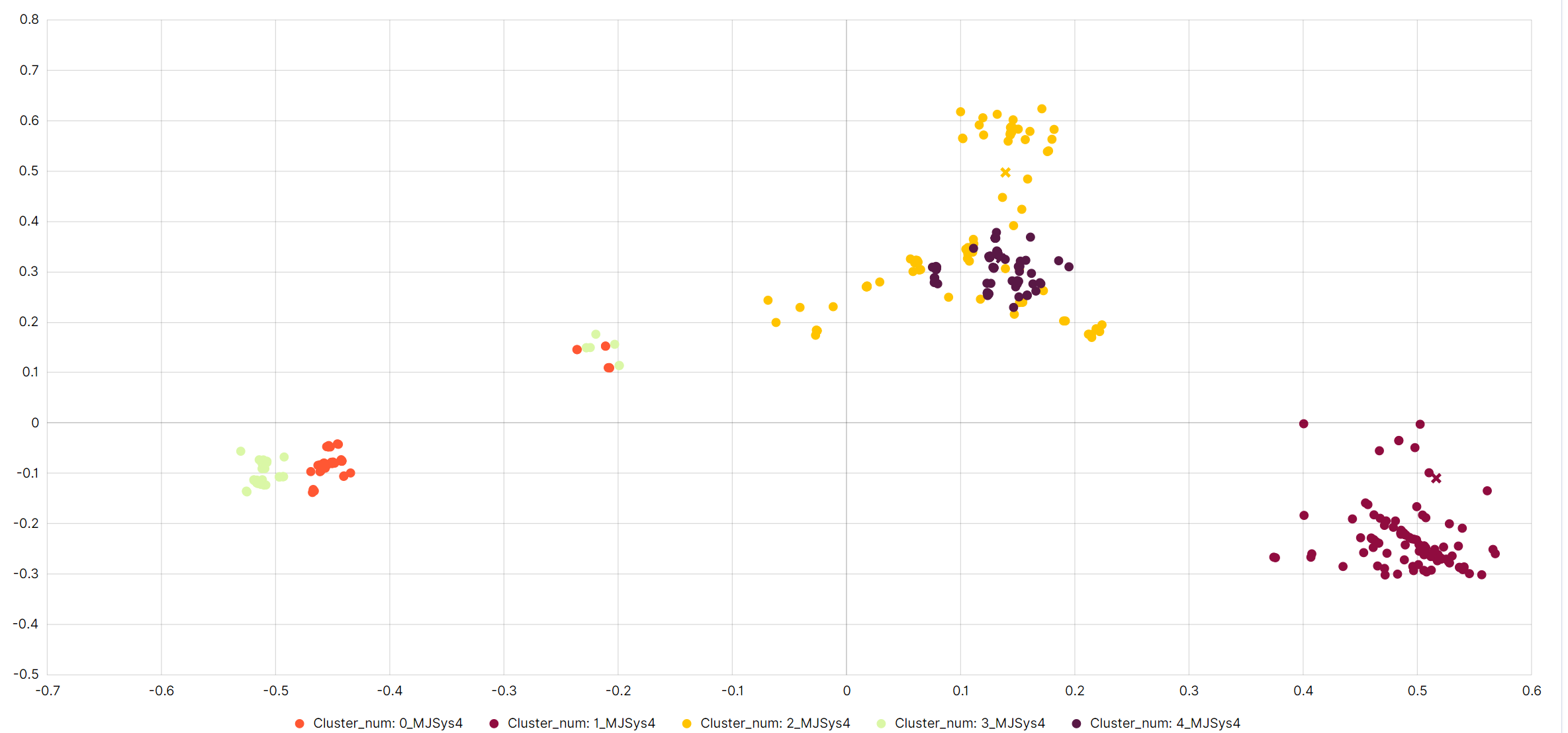
Indicative Number of Documents: The chart shows an indicative number of documents, meaning it does not display the entire dataset. This is done to avoid overcrowding the chart and to provide better readability and data analysis.
Benefits of the Cluster Distribution Chart
The cluster distribution chart helps in:
Visualizing Document Groupings: It enables understanding how documents are grouped into clusters and their distributions.
Quick Anomaly Identification: By analyzing the document distribution, unusual groupings can be quickly identified, which may indicate anomalies.
Analyzing Cluster Centers: Cluster centers help evaluate which features are most representative of a given cluster.
Clustering Result Examples
Below the cluster distribution chart, the Performance tab displays example documents from each cluster. These documents correspond to the dots on the chart and are not a full set but a representative sample.
Understanding the Clustering Result Examples
Document Representation: Each cluster section shows a list of example documents that belong to that cluster. The documents are represented by their content, such as log messages or text data.
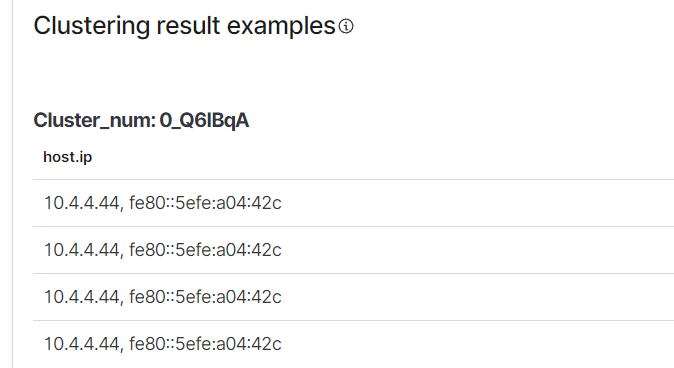
Sample Data: The documents shown are not exhaustive. Only a sample is displayed to give an idea of the type of data grouped into each cluster. This helps in understanding the nature and characteristics of the clusters without overwhelming the user with too much data.
Benefits of Viewing Clustering Result Examples
The clustering result examples help in:
Validating Cluster Quality: By looking at the example documents, you can quickly assess whether the clustering algorithm has grouped the documents meaningfully.
Identifying Patterns: Seeing sample documents from each cluster allows you to identify common patterns or features within each cluster.
Quick Reference: The representative samples provide a quick reference to the kinds of documents in each cluster, aiding in faster analysis and decision-making.
Summary
The Performance Tab for clustering in the Empowered AI module is a powerful tool for evaluating clustering analysis results. By using the elbow method and the Cluster Quality Chart, users can determine the optimal number of clusters for their data. Additionally, the ability to view clusters in the Discover module allows for a detailed examination of the data points in each cluster.
Proper use of the Performance tab for clustering analysis in the Empowered AI module is crucial for effective data grouping and system optimization. Use this guide to fully leverage the capabilities of this functionality.
Forecasting
Forecasting involves setting the data aggregation interval and the forecast time frame.
Step 1: Data Aggregation
Data Aggregation: Select the aggregation interval to be used for training the model. Available intervals are 30 minutes, 1 hour, 2 hours, 4 hours, 8 hours, 12 hours, and 1 day. This setting defines how the data will be grouped over time to build the forecasting model.

Step 2: Forecast Time Frame
Forecast Time Frame: Choose the future time period for which the model will attempt to predict values. Available options are 4 hours, 8 hours, 12 hours, 1 day, 2 days, 3 days, 1 week, and 1 month. This setting determines the period for which the model’s forecasts will be applied.

Summary
Configuring forecasting in the Empowered AI module involves setting the data aggregation interval and the forecast time frame. Correct configuration of these settings ensures that the model is trained on appropriately grouped data and that forecasts are made for the desired future period.
Performance Tab for Forecasting
The Performance Tab provides detailed visualizations and insights into the accuracy and effectiveness of the forecasting model over time.
Forecast vs Actual Data Chart
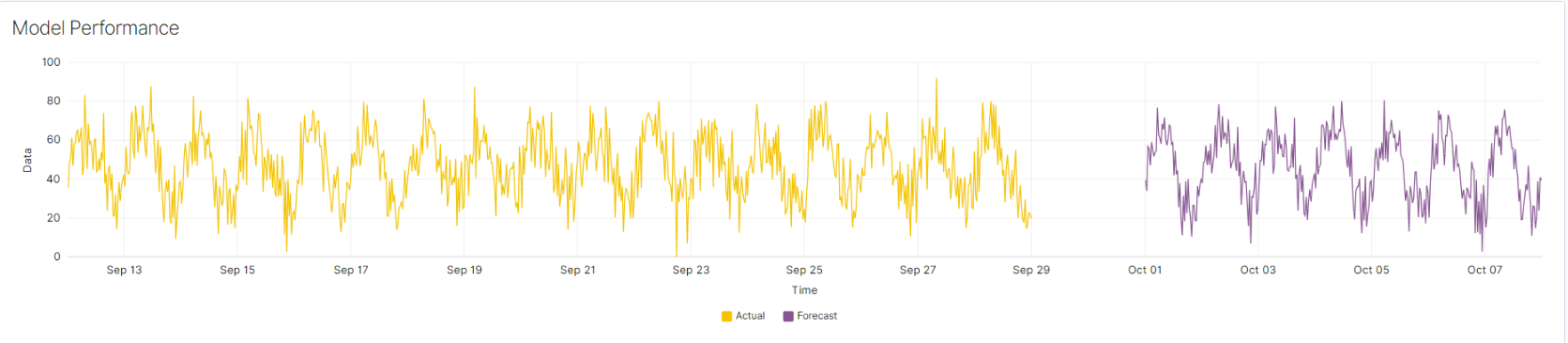
Forecast vs Actual Data Chart: This chart shows forecasted data compared to actual data over time. The chart uses different colors to distinguish between forecasted data (purple) and actual data (yellow).
Performance Analysis Over Time
The performance tab allows users to scroll and zoom in on the timeline to closely examine specific periods where the forecasting model performed well or poorly. This can help identify patterns or anomalies that may affect the forecast’s accuracy.
Summary
The performance tab for forecasting in the Empowered AI module provides crucial insights into the accuracy and performance of the forecasting model. Various charts and metrics allow users to visualize forecast accuracy over time, compare predicted values with actual data, and gain insights into the model’s reliability. Proper interpretation of these visualizations is essential for effectively utilizing forecasting capabilities.