Troubleshooting
Q: What data can I use in saved searches?
A: Various types of data can be used, but different analysis models expect specific data types. For example, Text Anomaly detection requires textual values.
Q: Can I edit saved searches?
A: Yes, but be cautious as changes affect all rules using the same saved search.
Q: How often should I run the rule?
A: The frequency depends on the nature of your data and how often you need to monitor it. For continuous monitoring, consider setting a scheduled analysis at regular intervals.
Q: How many clusters should I choose?
A: The number of clusters depends on the nature of your data and the objectives of your analysis. It is recommended to test different values to find the optimal number of clusters for your use case.
Q: What is the purpose of the Data Aggregation setting?
A: The Data Aggregation setting defines how data will be grouped over time. It determines the interval at which data points are aggregated.
Q: How do I choose the appropriate Forecast Time Frame?
A: The Forecast Time Frame should be selected based on the specific needs of your analysis. Consider the period for which you need the forecast and choose the appropriate time from the available options.
Q: What types of texts in the Text Anomaly use case can be analyzed?
A: The system is capable of analyzing various types of textual data, including emails, social media posts, reports, and other textual documents.
Q: Does the system support multiple languages?
A: Yes, the text analysis system supports multiple languages, making it a versatile tool on an international scale.
Troubleshooting
Problem: I can’t find saved searches in the Empowered AI module.
Ensure the search is saved in the Discover module and you have the appropriate permissions.
Problem: The rule does not analyze data as expected.
Check the rule configuration, time range, and search criteria.
Problem: The rule does not detect anomalies as expected.
Check the contamination factor and data aggregation settings. Adjust these parameters to better fit your data characteristics.
Problem: Too many anomalies are detected.
Fine-tune the contamination factor to reduce the number of false positives.
Problem: No anomalies are detected despite unusual data patterns.
Adjust the contamination factor or data aggregation settings to refine the model’s sensitivity.
Problem: Too many anomalies are detected, including normal data variations.
Fine-tune the contamination factor to reduce the number of false positives.
Problem: Charts do not display data correctly.
Ensure the data source and configuration settings are correct. Refresh the page or rerun the analysis if necessary.
Problem: Anomaly results appear incorrect.
Review the contamination factor and other model settings to ensure they are appropriately configured for your data.
Problem: Clustering does not work as expected.
Check the rule configuration and ensure that all fields are correctly set and that the data is appropriate for clustering.
Problem: I cannot find saved searches in the Empowered AI module.
Ensure that you have saved the search in the Discover module and that you have the necessary permissions to view it.
Problem: The Cluster Quality Chart does not display correctly.
Ensure that the data is appropriately prepared and that the clustering rule is correctly configured. Check for errors in the data source or clustering parameters.
Problem: I cannot view clusters in the Discover module.
Ensure you have the necessary permissions to access the Discover module and that the data is correctly indexed.
Problem: The model’s forecasts do not match the actual data.
Review the Data Aggregation and Forecast Time Frame settings to ensure they are appropriate for your data. Consider adjusting these settings or re-run the model with different intervals.
Problem: The forecast data does not match the actual data.
Review the model configuration and ensure that the input data is correct. Check the historical data used to train the model and adjust the model parameters if necessary.
Problem: The system does not analyze the exact number of logs specified.
Ensure that the number of logs is correctly set and that the available data meets the analysis criteria.
Problem: Delays in text analysis.
Verify system resources and configuration to increase processing efficiency.
Problem: Incorrect mapping for indices when starting a rule.
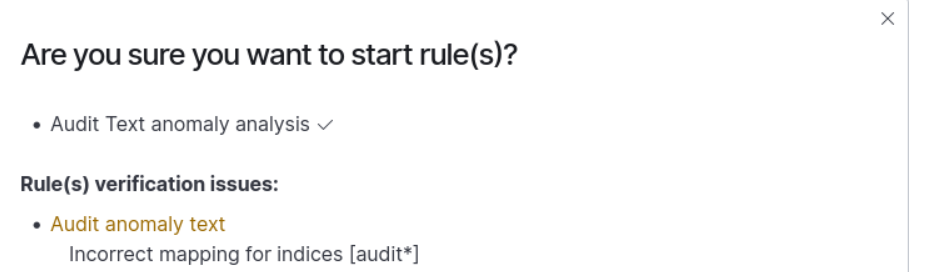
This indicates that the new mapping required for analysis has not yet been applied. The new mapping will be applied when a new index is created, which occurs on the next day for daily indices (e.g., index_name-2024.03.03) or on the next month for monthly indices (e.g., index_name-2024.03).
Problem: The rule shows
ERRORafter the run or the results of the analysis are unsatisfactory.This probably means that it is necessary to adjust the learning parameters. We recommend the following steps:
Press the
EditbuttonSet new
Build Time Frameto a period where the data occurs (7 days recommended)Set the new
Start Dateas the start date of the analysis (we recommend setting this parameter to the day when theBuild Time Framestarts).Click
Save and Runto start the process.
After mastering Empowered AI, proceed to:
Monitoring - System performance monitoring and AI infrastructure health management
UEBA - User and Entity Behavior Analytics with AI-enhanced behavioral analysis
Integration - Advanced integration capabilities with external AI and machine learning platforms