Language Settings
Changing default language for GUI
The GUI language can be changed as follows:
Add
.i18nrc.jsonto/usr/share/logserver-gui/directory:{ "translations": ["translations/ja-JP.json"] }
Upload a translation to /usr/share/logserver-gui/translations/ directory
Set the permission:
# chown -R user:group /usr/share/logserver-gui/translations/Set in
logserver-gui.ymlfile:i18n.locale: "ja-JP"Restart Logserver GUI service
Finally, the result should be as shown in the picture:
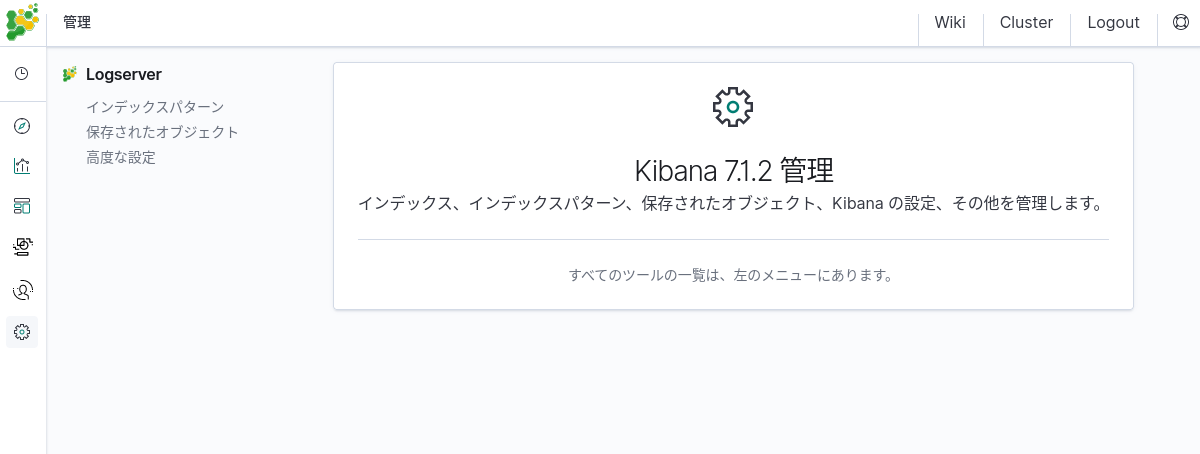
Preparing translation for GUI
Source file to use as a base for translations: /usr/share/logserver-gui/translations/en-EN.example.json
Bullet points for translations
For the translation to work you have to follow these steps.
Omitting some may result in missing translation in some parts of an application or an empty screen when entering a broken portion of an app.
The file with translation is JSON.
Translated values have the following structure:
{
    "message": {
      "key.for.the.value": "Translated value for the key"
    }
}
Every key is meant to be unique. There can be only one value for each key. In the messages object, each key has a “text” value, not a number and not an object.
But there are some structures in a source file that you will use as a base of your translation that have to be addressed during the process to achieve that.
Objects
{
  "messages": {
    "common.ui.aggTypes.buckets.filtersTitle": {
      "text": "Filters",
      "comment": "The name of an aggregation, that allows to specify multiple individual filters to group data by."
    }
  }
}
This has to be transformed as described above - a key
common.ui.aggTypes.buckets.filtersTitlehas to have a text assigned to it. The value that needs to be translated is in the fields “text” and “comment” described to you how the value needs to be translated. The result of such will be:{ "messages":{ "common.ui.aggTypes.buckets.filtersTitle": "Filtry" } }
Template variables
{
  "messages": {
    "common.ui.aggTypes.buckets.dateHistogramLabel": "{filedName} per {intervalDescription}"
  }
}
Any text that is encapsulated in
{}has to be left as is. Those values are substituted by the application.How to treat complicated structures, eg.: plurals, etc.
{
 "messages": {
   "kbn.discover.hitsPluralTitle": "{hits, plural, one {hit} other {hits}}"
 }
}
As of now, there is a single example of the above. Contrary to the last point the value in
{}has to be translated for that key. So{hit}and{hits}.React compliant filenames
In the application codebase, some methods will take translated keys and substitute them. But many of those will work only if the name of the translation file is one of:
enen-USen-xaeses-LAfrfr-FRdede-DEjaja-JPkoko-KRzhzh-CNplruru-BYru-KGru-KZru-MDru-UA
FAQ
Can I just paste everything into a basic(or advanced) translation software?
~No. There are some points to follow for the translation file to work at all.I have the following error - is the application broken:
Error formatting message: A message must be provided as a String or AST
~It is possible you have not followed point 1 - you have left some object structures in your file.Blank page in GUI
~It is usually caused by not following point 2 -some variable names were changed.
I have set “i18n.locale” in the configuration file but the app is not translated.
~You may have forgotten to put a reference for your file in.i18nrc.jsonfile.
Known issues
Some text may not be translated in Management -> Advanced settings even though keys for them are present in translation files.
The same thing may happen in Discover -> View surrounding documents.
Not an issue but plugin names (links on the left menu) do not translate.
Settings
General Settings
The Settings tab is used to set the audit on different activities or events and consists of several fields:
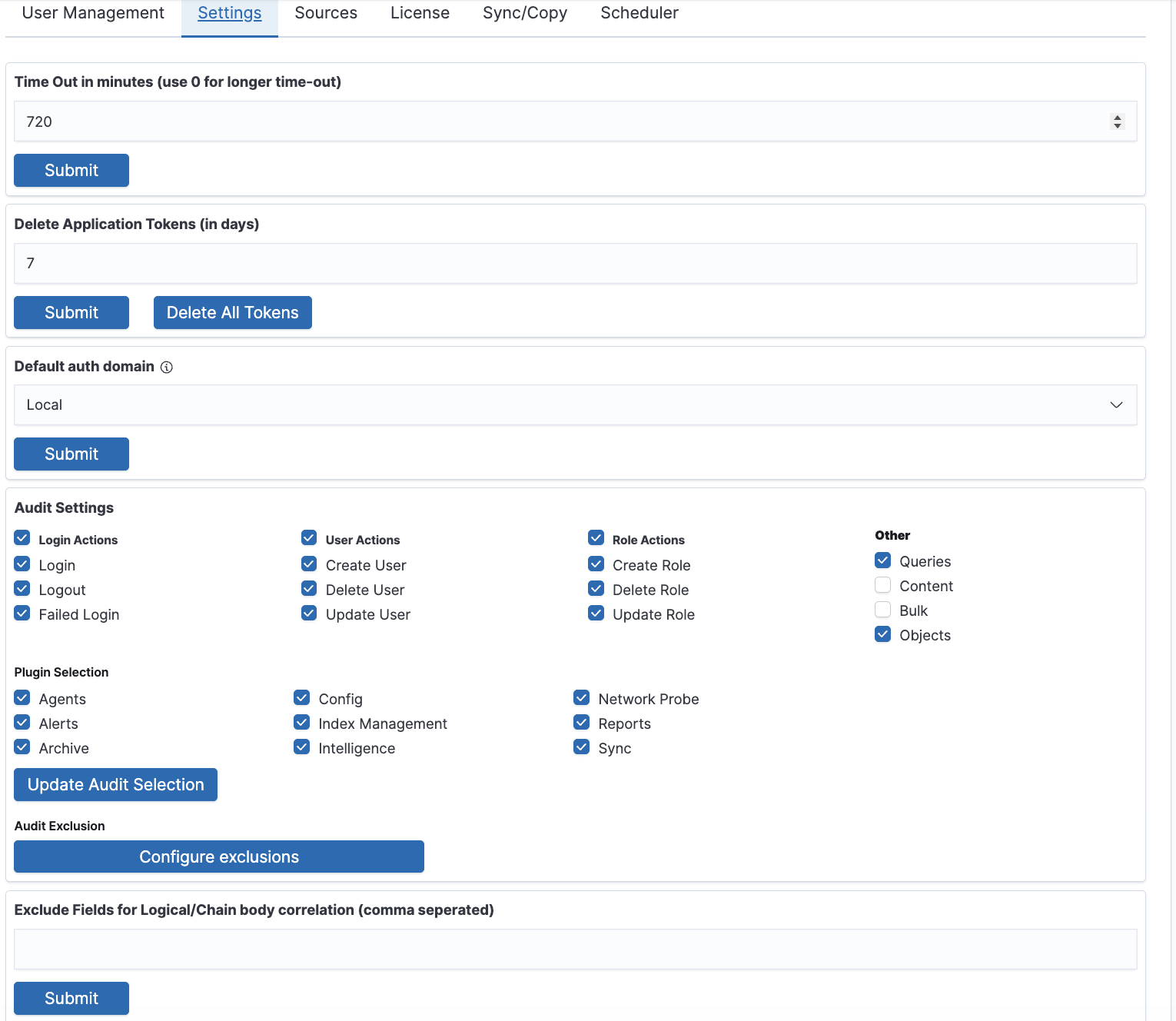
Time Out in minutes field - this field defines the time after how many minutes the application will automatically log you off
Delete Application Tokens (in days) - in this field, we specify after what time the data from the audit should be deleted
Delete Audit Data (in days) field - in this field, we specify after what time the data from the audit should be deleted
The next fields are checkboxes in which we specify what kind of events are to be logged (saved) in the audit index. The events that can be monitored are: logging (Login), logging out (Logout), creating a user (Create User), deleting a user (Delete User), updating user (Update User), creating a role (Create Role), deleting a role (Delete Role), update of the role (Update Role), start of export (Export Start), delete of export (Export Delete), queries (Queries), result of the query (Content), if attempt was made to perform a series of operation (Bulk)
Delete Exported CSVs (in days) field - in this field, we specify after which time exported files with CSV extension have to be removed
Delete Exported PDFs (in days) field - in this field, we specify after which time exported files with PDF extension have to be removed
Each field is assigned the “Submit” button thanks to which we can confirm the changes.
License (License Info)
The License Information tab consists of several non-editable information fields.
Also, if you are logged in as an administrator you will be able to upload new license from here.
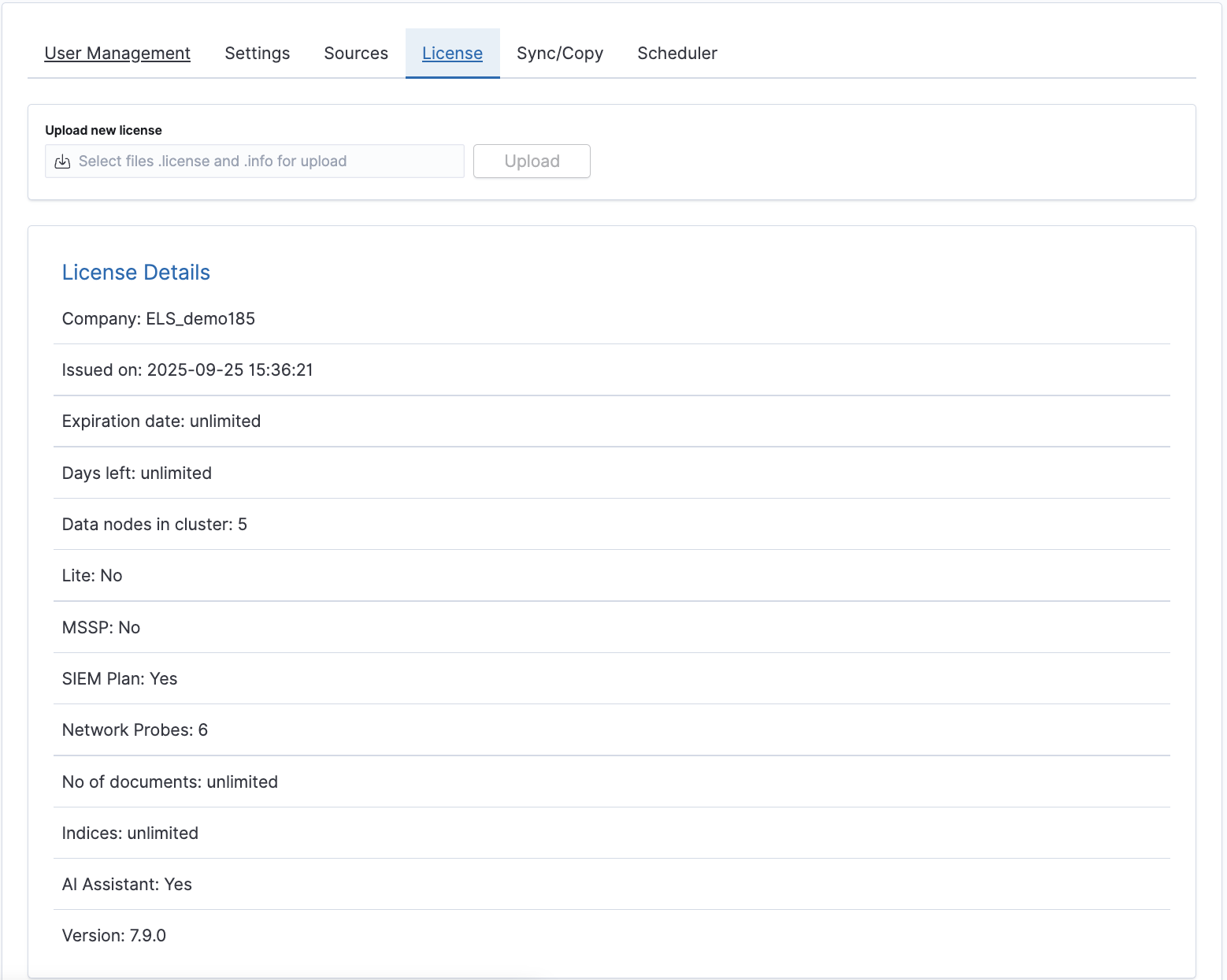
These fields contain information:
Company - who owns the license, in this case, Foo Bar.
Issued on - license creation date
Expiration date - when the license will expire
Days left - how many days left before it will expire
Data nodes in cluster - how many nodes we can put in one cluster - in this case, 10
SIEM Plan enabled - is SIEM Plan covered by the license
Network Probes - count of NetworkProbes covered by the license
No of documents - license can be limited by docs count
Indices - license can be limited by index pattern names
Version - version of the product
Renew license
To change the Energy Logserver license files on a running system, use the “Upload new license” option at the top of the “License” tab.
Select the provided license files, e.g.: es_123.info, es_123.license.
Click upload.
Files will be uploaded and verified. New license information will appear.
Verify new license information and click “Submit” when ready.
It will install itself in the cluster - no need to manually put it on all nodes.
Special accounts
At the first installation of the Energy Logserver application, apart from the administrative account (admin), special internal accounts are created: alert, intelligence, and scheduler. These accounts are marked with the Internal flag in the User List and cannot be deleted. They can be found by navigating to Management → Config → User Management → User List and filtering by account name.
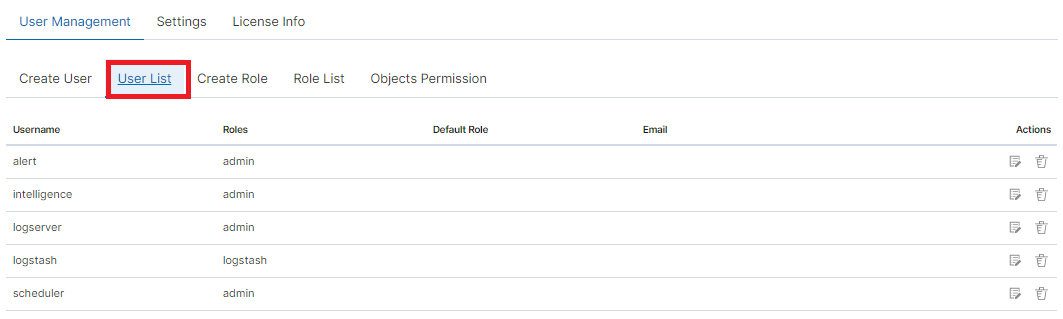
Alert Account - this account is connected to the Alert Module which is designed to track events written to the index for the previously defined parameters. If these are met the information action is started (more on the action in the Alert section)
Intelligence Account - this account is related to the module of artificial intelligence which is designed to track events and learn the network based on previously defined rules artificial intelligence based on one of the available algorithms (more on operation in the Intelligence chapter)
Scheduler Account - the scheduler module is associated with this account, which corresponds to, among others for generating reports