Managed Security Service Provider (MSSP)
The MSSP mode allows the user to effectively manage sources collected throughout the system. The source can be defined as a host providing data to the system. When the MSSP mode is enabled, sources are continuously gathered and monitored so they can be displayed in an understandable way.
Collecting Sources
The sources are collected in two ways - by the Network Probe or the Logserver itself. The Network Probe utilizes a unique set of fields against documents of different technologies to generate an inimitable identifier. This makes it possible to determine from which source the data came and therefore also to manage the system’s traffic.
Managing Sources
Only admin-level users can manage sources in the Config plugin. For such users, it displays the Sources tab in the side navigation bar, the Sources tab in the Config plugin, and a blue banner at the top of the screen.

Sources tab in the navigation bar
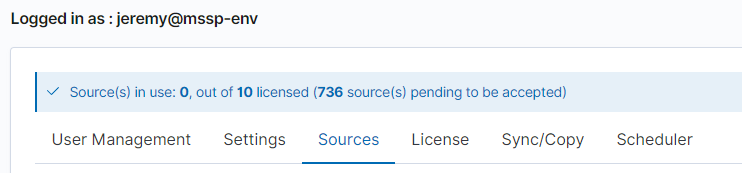
Sources tab in the Config plugin

Blue banner
Source Types
Two states of sources can be distinguished - Waiting and Allowed.

Sources types
1. Waiting
The Waiting source is a source pending approval. Data related to this source will not be ingested until it is accepted. Only the first document from a given source is collected and stored as an example. Its details include information such as when it was indexed, the source from where it was sent, and its contents. In addition, a note can be added to distinguish it from other sources and describe it in a memorable way.
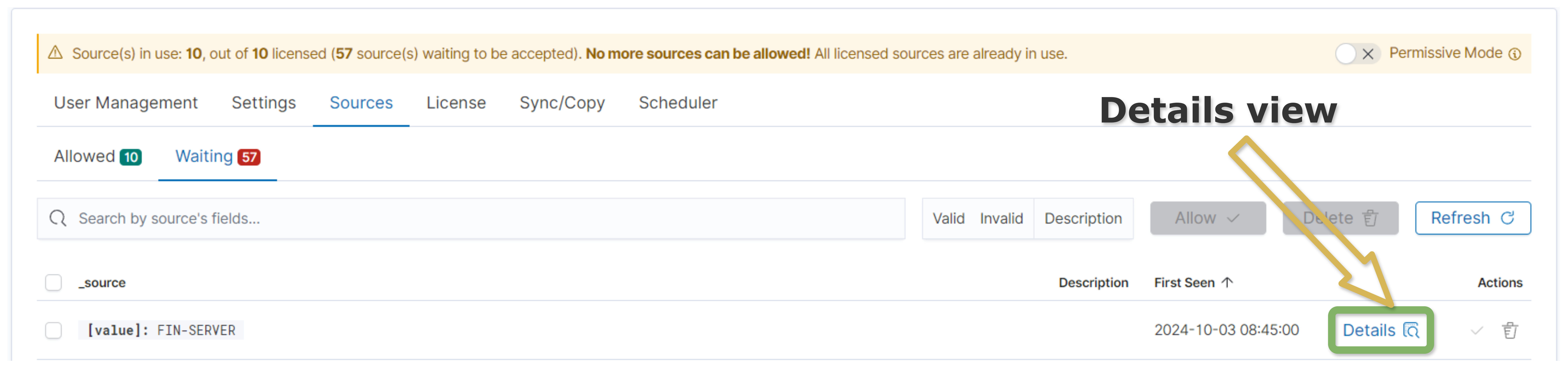
2. Allowed
When a Waiting document is Allowed, the flow of its data is made possible, and the source consumes license allocation, enabling full processing and monitoring.
Source Removal
Both types of sources can be removed. After deleting the Waiting source, if the data is still coming in, after a brief moment the source will reappear in the table with the possibility of possible acceptance. On the other hand, if an Allowed source is deleted, the data will stop coming in, although the data collected up to the time of deletion will not be cleared.
Manual Change of State from Waiting to Allowed
Check the box of the sources which you want to move from
WaitingtoAllowedstate.Press on the button
Allow.
A details of the operation will be displayed. If you still want to perform the operation, press
Yes, allowbutton.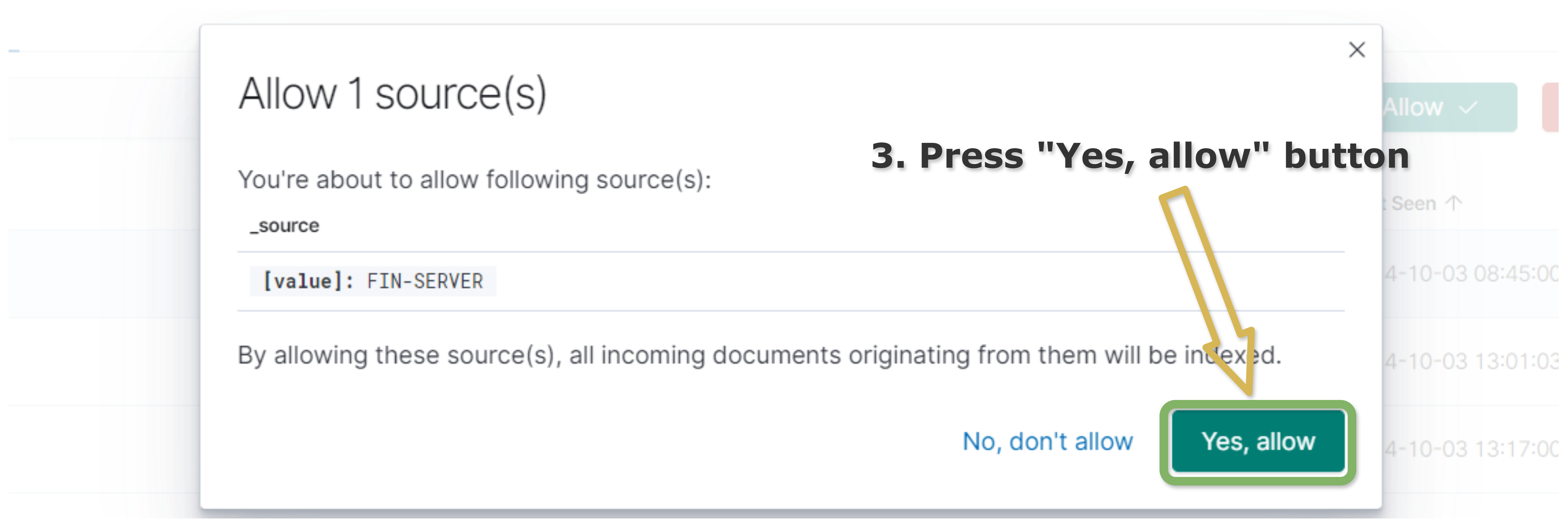
Manual Change of State from Allowed to Waiting
Go to the
Allowedtab.Check the box of the sources which you want to move from
AllowedtoWaitinglist.Press on the button
Delete.
Details of the operation will appear. If you still want to perform the operation, press
Yes, deletebutton.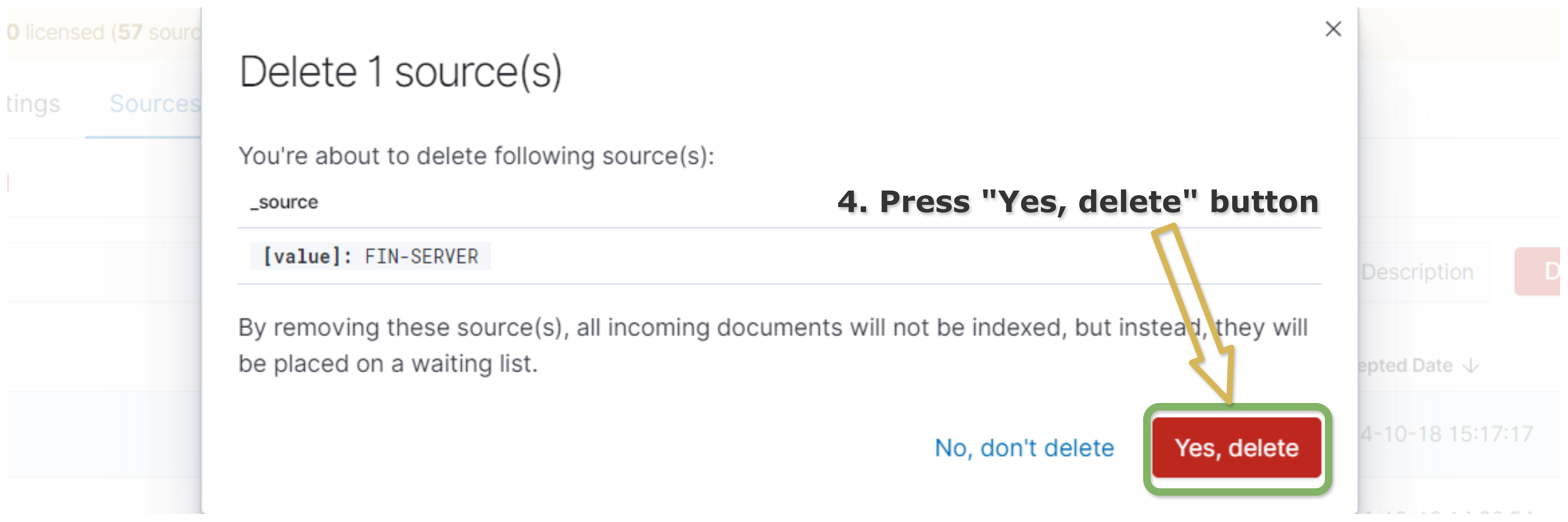
Fingerprint
The Network Probe generates a unique identifier for each document called a fingerprint in the _mssp_id field. Fingerprint is encrypted data from the document. Sources without fingerprints are automatically dropped. Sources whose fingerprints cannot be decrypted are placed on a waiting list but without the possibility of being allowed. Documents with valid fingerprints are placed on a waiting list with the possibility of approval until the license limit is reached.
The Permissive Mode
The Permissive Mode is enabled out of the box. It automatically allows waiting sources until the license limit is completely used. If all available sources have been used, no others will be accepted, which is also indicated by the blue banner changing to orange with a warning. The purpose of this transition is to draw the user’s attention to checking whether all allowed sources are still being used. If so, it means that a licence covering more sources should be purchased.

Orange banner
It was introduced to make it easier to use the system, without having to worry and remember about source management. On the other hand, if there is a need to allow or remove troublesome or erroneous sources manually, it is always possible to disable this mode and perform manual operations.
Turn On/Off the Permissive Mode
Go to the Sources tab.
Toggle the switch located on the blue bar captioned
Permissive Modeto the state in which you want it to work.
Check MSSP Status
Go to the Config tab in the navigation bar.
Select Licence section in the top bar.
The value of the
MSSPfield in Licence Details indicates the status of the module.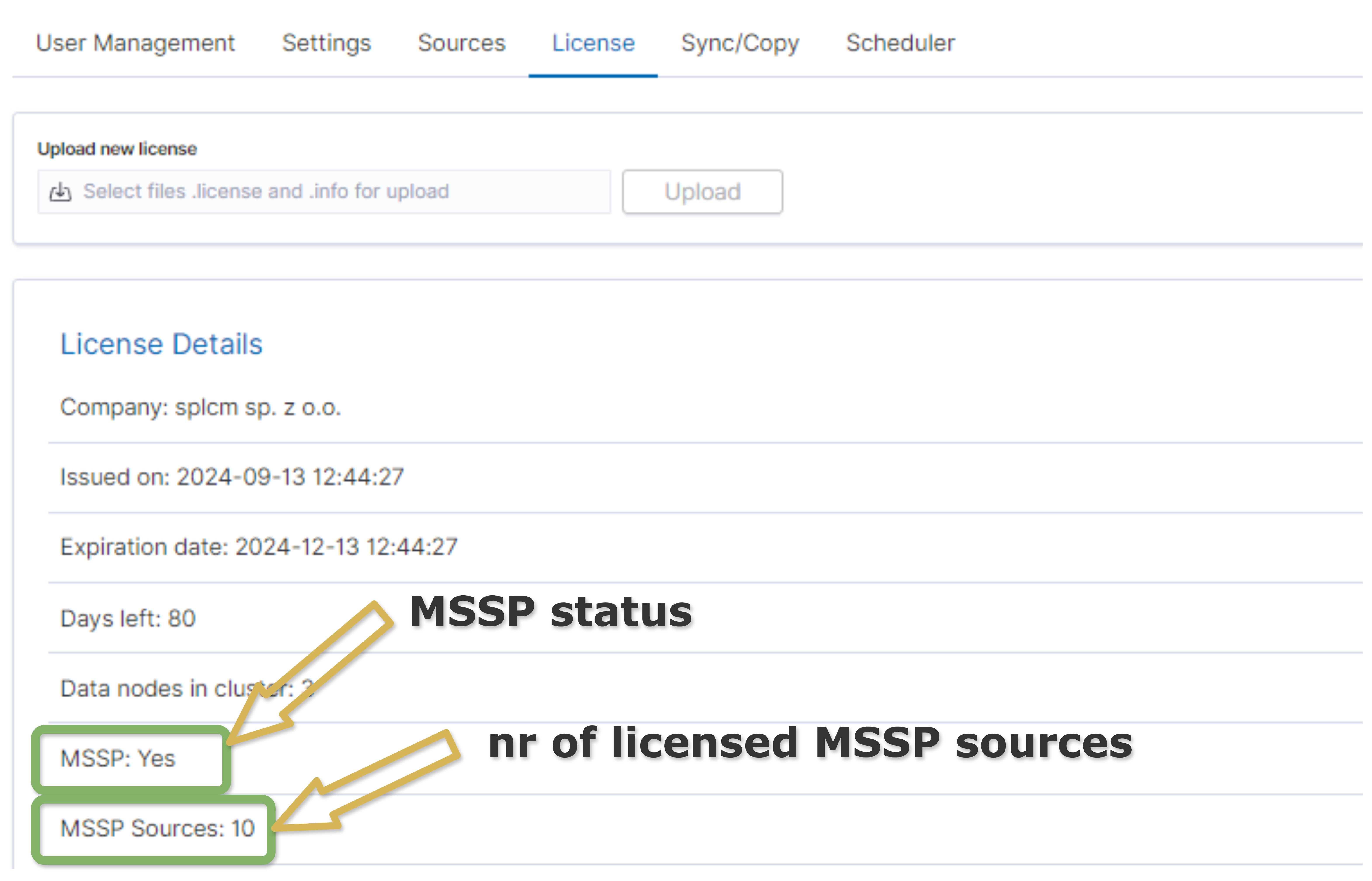
MSSP Disabled
When MSSP mode is disabled, the system still gathers information about sources based on documents, but it does not block or reject any incoming documents. A list of sources can still be viewed in the Config->Sources tab.